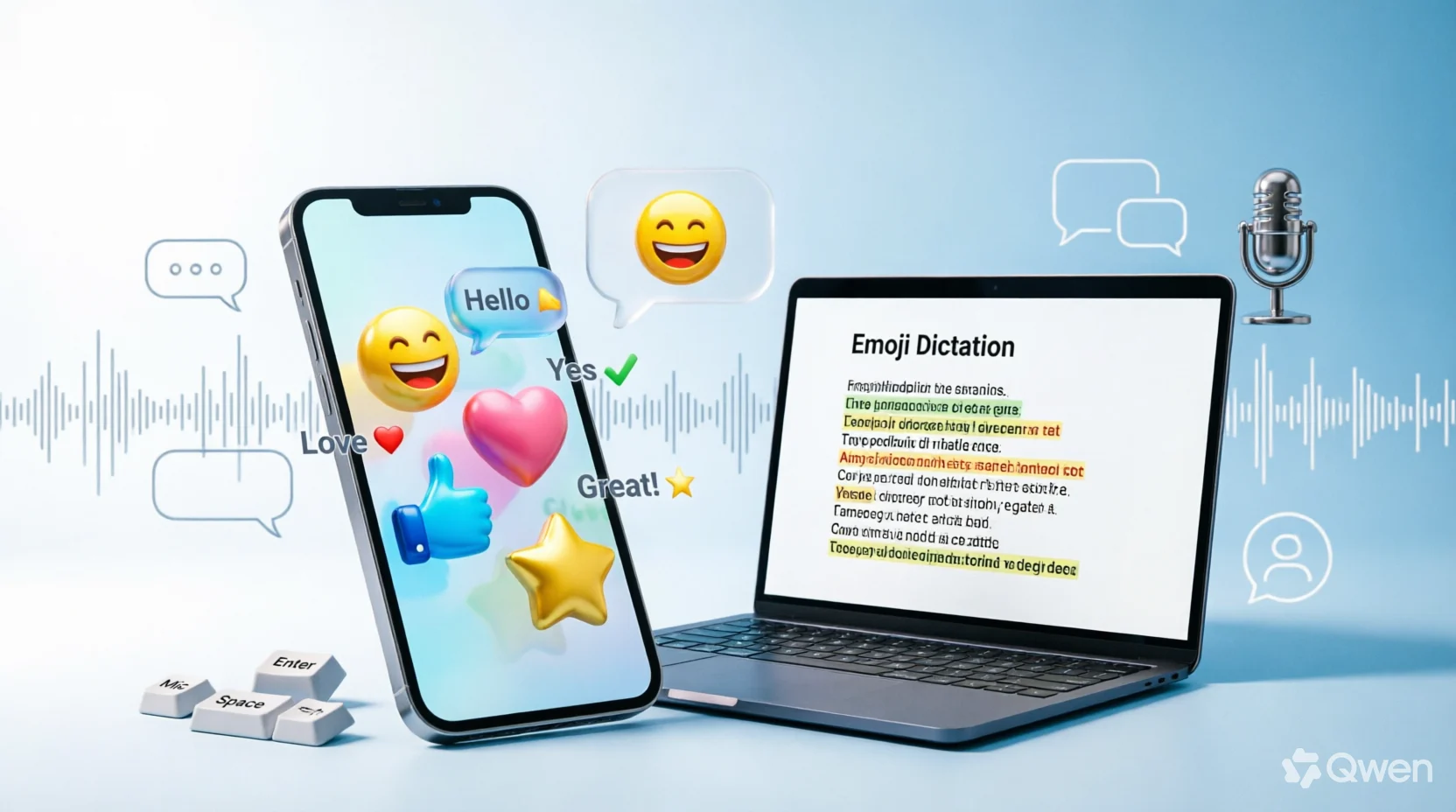
Emoji dictation is a simple way to use emojis with spoken language. In everyday technology, it means saying an emoji’s name while using voice dictation so your device inserts the corresponding emoji. For example, saying “heart emoji” may produce ❤️.
In classrooms, emoji dictation can also mean showing students a sequence of emojis and asking them to describe, interpret, or turn those symbols into words and sentences. Both uses make communication more interactive, visual, and accessible.
Quick Answer: What Is Emoji Dictation?
Emoji dictation is the process of using spoken emoji names to insert emojis into dictated text, or using emojis as prompts for a dictation-style language activity.
On supported devices and languages, voice dictation can recognize commands such as “heart emoji,” “smiley face,” or “thumbs up” and place the corresponding symbol into your message. Apple documents emoji insertion through Dictation on supported languages, while Google’s voice-typing tools also support spoken emoji commands on compatible devices.
For education, emoji dictation works differently. A teacher might show 🐱🏠🌧️ and ask students to turn the visual sequence into a sentence such as, “The cat is in the house because it is raining.” This approach can support vocabulary, listening, sentence construction, and creative thinking.
How Does Emoji Dictation Work?
There are two main forms of emoji dictation, and understanding the difference makes the term easier to understand.
1. Emoji dictation with voice typing
This is the technology-based meaning.
You open an application where you can type, activate the microphone, and speak your message. Instead of manually opening the emoji keyboard, you say the name of the emoji when supported by your device.
For example:
| What you say | Possible result |
|---|---|
| “heart emoji” | ❤️ |
| “fire emoji” | 🔥 |
| “star emoji” | ⭐ |
| “rocket emoji” | 🚀 |
| “thumbs up” | 👍 |
| “party popper” | 🎉 |
| “broken heart” | 💔 |
| “thinking face” | 🤔 |
The exact commands and available languages can vary by operating system, keyboard, device, and region. Apple notes that emoji dictation is available only in supported languages, while Google also has device-specific requirements for some advanced voice-typing features.
2. Emoji dictation as a learning activity
The educational version uses emojis as visual clues.
A teacher can display:
🌞 ☕ 📚 🏫
Students might create:
“I had breakfast and went to school to study.”
A more advanced activity could use:
🚗🌧️🏠😴
A student could interpret this as:
“It was raining while I drove home, and then I went to sleep.”
There is no single correct sentence in many emoji-dictation activities. The goal can be to encourage students to understand visual information and express it using appropriate language.
How to Use Emoji Dictation on a Phone
Voice emoji insertion depends on your device and language settings, but the general process is straightforward.
On iPhone
Open an app with a text field, such as Messages or Mail, and tap the Dictation button on the keyboard. Start speaking and use a supported emoji name.
For example:
“Hello heart emoji how are you question mark”
Depending on the language and supported commands, the result can include both punctuation and the requested emoji.
Apple’s current documentation specifically explains that users can say an emoji name such as “heart emoji” while dictating. It also supports spoken punctuation commands such as “comma,” “period,” and “question mark.”
On Android and Gboard
On compatible devices, Gboard provides voice-typing features that can insert emojis using spoken commands. Google gives “Smiley emoji” as an example and notes that advanced voice typing has specific device requirements.
Some Pixel devices can also suggest emojis based on the context of dictated text. Google explains that users can search for an emoji by describing it, even when they do not know its exact name.
Because voice-typing features change over time, the safest approach is to check your keyboard’s current dictation settings if a particular command does not work.
Popular Emoji Dictation Examples
The easiest way to understand emoji dictation is through examples.
Simple examples
Try short commands such as:
- “Good morning smiley face”
- “I love this heart emoji”
- “That was amazing fire emoji”
- “Thank you folded hands”
- “See you soon waving hand”
- “Great job thumbs up”
The exact output depends on how your device interprets the spoken phrase.
More expressive messages
Emoji dictation becomes more useful when emojis are combined naturally with text.
For example:
“We did it party popper I am so happy smiling face”
could produce a message containing 🎉 and 😊.
Another example is:
“I miss you broken heart”
which may produce:
I miss you 💔
The main advantage is convenience. Instead of stopping your message, opening the emoji keyboard, finding a symbol, and returning to dictation, you can speak the emoji command as part of the message.
Emoji Dictation for Students and Teachers
The educational use of emoji dictation can be especially useful for language practice.
Traditional dictation normally involves listening to spoken words and writing them down. Emoji dictation changes the direction: students first interpret visual symbols and then produce language.
For example:
🐶 + 🌳 + ⚽
A beginner might write:
“The dog is in the park.”
An intermediate student could write:
“The dog went to the park and played football.”
An advanced learner could create:
“After taking his dog to the park, the boy spent the afternoon playing football.”
The same emoji sequence can therefore support different ability levels.
Skills it can practice
Emoji dictation can be adapted to practice:
- Vocabulary
- Sentence construction
- Speaking
- Writing
- Listening
- Descriptive language
- Storytelling
- Grammar
- Reading comprehension
- Creative thinking
Educational examples of emoji-based activities commonly ask learners to turn emoji sequences into sentences, stories, descriptions, or dialogues.
Emoji Dictation Examples for Different Levels
Beginner
Use familiar objects and emotions.
🐱 🏠
Possible answer:
“The cat is in the house.”
Intermediate
Use a sequence that suggests an event.
🌧️ 👦 ☂️ 🏫
Possible answer:
“The boy took an umbrella to school because it was raining.”
Advanced
Use several emojis to encourage storytelling.
✈️ 🌍 📷 🏨 🍽️
Possible answer:
“After flying to another country, she took photographs, checked into a hotel, and went out for dinner.”
The important point is that emoji sequences do not always have one fixed meaning. Students should be encouraged to explain why their interpretation makes sense.
Emoji Dictation vs. Regular Dictation
Although they share the word “dictation,” the two activities are quite different.
| Feature | Regular dictation | Emoji dictation |
|---|---|---|
| Main input | Spoken words | Emojis or spoken emoji commands |
| Main skill | Listening and writing | Interpretation and language production |
| Creativity | Usually limited | Often high |
| Technology required | Not necessarily | Sometimes |
| Classroom use | Vocabulary, spelling, grammar | Vocabulary, storytelling, speaking, writing |
| Accessibility | Primarily audio-based | Combines visual and language information |
Neither method is automatically better. Regular dictation is useful when accuracy, spelling, and listening are the main goals. Emoji dictation can be more open-ended when the goal is communication and creativity.
Why Is Emoji Dictation Useful?
One benefit of voice-based emoji dictation is speed and convenience. If you are already speaking a message, saying the emoji name can be faster than stopping to search through an emoji panel.
It can also make hands-free communication easier. Apple, for example, supports spoken emoji commands as part of Dictation on supported languages.
The educational version offers a different advantage: emojis provide a visual starting point. A learner who struggles to begin a paragraph may find it easier to start with three or four pictures.
For teachers, emoji sequences can also make an ordinary language exercise feel more interactive. A single sequence can generate several different answers, allowing students to compare vocabulary, grammar, and interpretation.
Common Mistakes When Using Emoji Dictation
1. Assuming every device understands every emoji name
Voice recognition is not universal. A command that works on one device may produce ordinary text on another.
Solution: Test common commands first and use the emoji keyboard manually when necessary.
2. Speaking too quickly
Fast speech can cause words or emoji names to be misunderstood.
Solution: Speak clearly and pause briefly between important commands.
3. Forgetting language support
Emoji dictation may depend on the language being used. Apple specifically warns that Dictation and emoji insertion are not available in every language or region.
Solution: Check your keyboard and Dictation language settings.
4. Expecting one emoji to have only one meaning
An emoji can communicate different ideas depending on context.
For example, 🔥 can suggest literal fire, excitement, something impressive, or popularity.
Solution: Consider the surrounding words before deciding what an emoji means.
5. Treating emoji sequences as exact translations
In educational activities, an emoji sequence is usually a prompt rather than a sentence with one official translation.
Solution: Accept reasonable interpretations and focus on clear language.
6. Not proofreading dictated text
Voice recognition can misunderstand similar-sounding words, punctuation, and names. Proofreading remains important when using speech-to-text.
Practical Tips for Better Emoji Dictation
Whether you are texting or teaching, a few simple habits can make emoji dictation work better.
Start with familiar emojis
Use common symbols such as ❤️, 😊, 👍, 🎉, 🌞, 🚗, 🏠, and 🍕 before introducing less familiar ones.
Use context
Instead of relying on a single emoji, combine two or three symbols with words.
For example:
“Meeting went well thumbs up”
is easier for a voice system to understand than an unusual emoji name used without context.
Test commands before relying on them
If you are preparing an important message, test the emoji command first. Different platforms can interpret spoken phrases differently.
Keep classroom activities short
For younger learners, three to five emojis may be enough. Longer sequences can become confusing rather than challenging.
Allow multiple answers
If the activity is designed for creative writing, do not force every student to produce exactly the same sentence.
Increase difficulty gradually
Start with objects, then introduce actions, emotions, locations, and finally complete stories.
A Simple Emoji Dictation Activity
Teachers can run a five-minute activity with almost no preparation.
Step 1: Display three emojis.
Example:
🐶 🌧️ 🏠
Step 2: Give students one minute to create a sentence.
Step 3: Ask several students to read their answers.
Step 4: Compare the different interpretations.
Step 5: Challenge students to turn the sentence into a short story.
For example:
“The dog was outside when it started raining, so it ran back into the house.”
This can then become a grammar exercise by asking students to change the sentence into past, present, or future tense.
FAQs:
1. What does emoji dictation mean?
Emoji dictation can mean using voice dictation to insert emojis by speaking their names. It can also describe a learning activity where emojis are used as prompts for students to create sentences or stories.
2. Can I dictate emojis with my voice?
Yes, supported devices and languages can allow users to insert emojis while dictating. Apple and Google both document voice-based emoji insertion on supported systems.
3. What should I say to insert an emoji?
Commands vary, but examples include phrases such as “heart emoji,” “smiley emoji,” “thumbs up,” and “party popper.” The exact command depends on your device and language.
4. Does emoji dictation work on iPhone?
Yes. Apple’s current iPhone documentation states that supported languages can insert emojis during Dictation by saying the emoji’s name.
5. Does emoji dictation work on Android?
Yes, compatible Android devices and keyboards can support spoken emoji insertion. Google’s Gboard documentation describes emoji insertion through voice typing, although some advanced features have device and language requirements.
6. How can teachers use emoji dictation?
Teachers can display emoji sequences and ask students to turn them into sentences, descriptions, conversations, or stories. The activity can be adapted for vocabulary, grammar, speaking, and writing practice.
7. Is emoji dictation good for learning English?
It can be useful because students must connect visual ideas with English vocabulary and sentence structures. Its effectiveness depends on how the activity is designed and the learner’s level.
8. Why does voice dictation sometimes type the emoji name instead of the emoji?
Emoji recognition depends on the device, keyboard, language, and exact spoken phrase. If the system does not recognize the command, it may simply transcribe the words. In that situation, manually selecting the emoji is the most reliable alternative.
Conclusion
Emoji dictation has become a practical way to combine speech, text, and visual communication. On modern devices, supported voice-typing systems can turn spoken emoji names into symbols, making messages faster and more convenient.
In education, emoji dictation offers a creative alternative to traditional exercises by giving learners visual prompts that can become sentences, descriptions, conversations, or stories.
The best approach is to keep the activity or voice command simple, use familiar emoji names, consider device and language support, and always check the final result.
If you are dictating a quick message or helping students build language skills, emojis can add context and make communication more engaging without replacing clear words.









7 thoughts on “Emoji Dictation: What It Is, How It Works, Examples, and Practical”