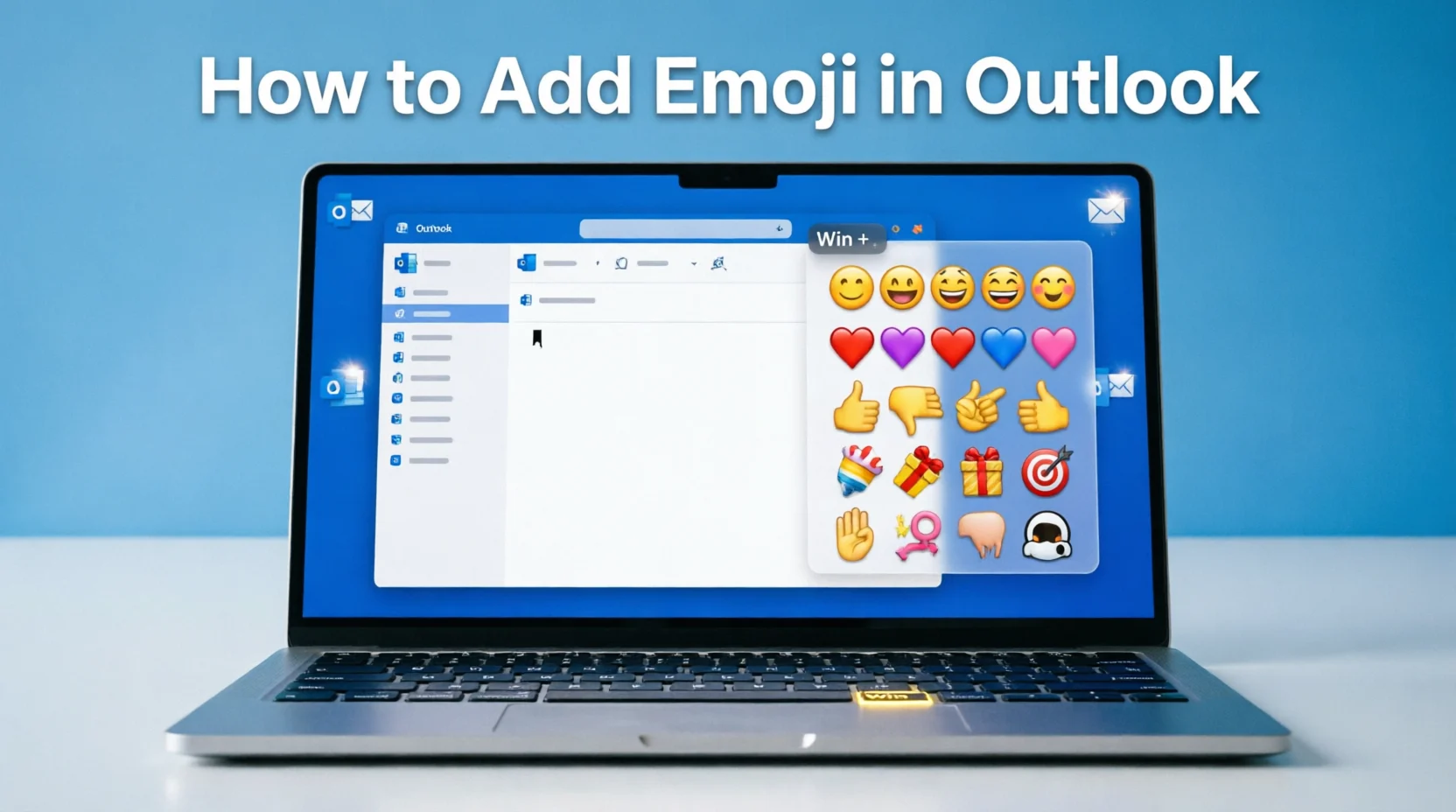
Emojis can make Outlook emails feel more friendly, expressive, and engaging. To add an emoji in Outlook, place your cursor where you want it and use your device’s emoji keyboard. On Windows, press Windows key + . (period) or Windows key + ; (semicolon) to open the emoji picker. On Mac, press Control + Command + Space. You can also use Outlook’s built-in emoji option when it is available in your version of Outlook.
Quick Answer
The easiest way to add an emoji in Outlook is to use your computer’s built-in emoji keyboard:
- Windows: Press Windows + . or Windows + ;
- Mac: Press Control + Command + Space
- Outlook on the web: Open an email draft and use the emoji option if shown in the message toolbar, or use your device’s emoji keyboard.
- Mobile Outlook: Tap the emoji/smiley key on your phone’s keyboard.
- Copy and paste: You can also copy an emoji from another source and paste it directly into your email.
After selecting an emoji, it will appear wherever your cursor is positioned in the message.
How to Add Emoji in Outlook on Windows
If you use Outlook on a Windows computer, adding emojis is quick and does not normally require installing anything.
Method 1: Use the Windows Emoji Keyboard
- Open Outlook and create a new email.
- Click inside the message where you want the emoji.
- Press Windows + . (period).
- The Windows emoji panel will appear.
- Browse through the available emojis or search for one.
- Click the emoji you want.
- Continue writing your email.
You can also press Windows + ; (semicolon) to open the same emoji panel.
For example, if you want to write:
Thanks for your help 😊
Type the sentence, open the emoji picker, and select the smiling face.
Method 2: Search for an Emoji
The Windows emoji panel includes a search function. Instead of scrolling through hundreds of symbols, type a description such as:
- smile
- heart
- thumbs up
- celebration
- check
- star
- laugh
The available results will depend on the emoji system installed on your Windows device.
Method 3: Copy and Paste an Emoji
You can also copy an emoji and paste it into an Outlook message.
For example:
😀 😊 👍 🎉 ❤️ ⭐ 🚀 👋
Place your cursor in the email and press Ctrl + V after copying the emoji.
This method can be particularly convenient when you already have the exact emoji you want.
How to Add Emoji in Outlook on Mac
Outlook users on Mac can use macOS’s built-in character viewer.
Steps to Insert an Emoji
- Open Outlook.
- Start a new email or reply to a message.
- Click where you want to insert the emoji.
- Press Control + Command + Space.
- The Character Viewer will open.
- Search for an emoji or browse the categories.
- Select the emoji.
The emoji will be inserted at the cursor position.
For example:
Your meeting is confirmed 👍
You can place the emoji at the end of a sentence or elsewhere in the message, depending on the tone you want.
How to Add Emoji in Outlook Web
If you use Outlook through a web browser, the exact interface can vary depending on Microsoft’s current Outlook web experience and account type.
To insert an emoji:
- Open Outlook in your browser.
- Select New mail.
- Click inside the message.
- Look at the formatting or message toolbar for an emoji/smiley icon, if available.
- Select an emoji.
- Continue writing your email.
You can also use your operating system’s emoji keyboard.
Windows Web Browser
Press:
Windows + .
Then select the emoji you want.
Mac Web Browser
Press:
Control + Command + Space
Then select an emoji from the Character Viewer.
Using the operating system’s emoji picker is often the simplest option because it works independently of the Outlook interface.
How to Add Emoji in Outlook Mobile
Outlook on Android and iPhone generally relies on the emoji keyboard provided by your phone.
On iPhone
- Open the Outlook app.
- Create a new email or reply.
- Tap inside the message.
- Open the emoji keyboard using the emoji/globe key on the iPhone keyboard.
- Select an emoji.
- Continue typing.
If the emoji keyboard is not available, check your iPhone’s keyboard settings to make sure an Emoji keyboard has been added.
On Android
- Open the Outlook app.
- Start a new message.
- Tap inside the email.
- Tap the emoji button on your keyboard.
- Choose an emoji.
- Return to the letter keyboard when you want to continue typing.
The exact emoji button can differ between Android keyboards, including Gboard and manufacturer-specific keyboards.
Outlook Emoji Methods at a Glance
| Device or Outlook version | Easy method | Shortcut |
|---|---|---|
| Windows desktop | Windows emoji picker | Windows + . |
| Windows web | System emoji picker | Windows + . |
| Mac | Character Viewer | Control + Command + Space |
| iPhone | iOS emoji keyboard | Emoji/globe key |
| Android | Phone’s emoji keyboard | Emoji key |
| Any device | Copy and paste | Ctrl/Cmd + V |
How to Add Special Symbols Instead of Emojis
An emoji is not the same thing as every special character.
Outlook emails can contain symbols such as:
- ✓ Check mark
- ★ Star
- → Arrow
- © Copyright
- ™ Trademark
- € Euro
- → Directional arrows
If you need a specific symbol rather than a colorful emoji, your operating system’s character or symbol tools may be more appropriate.
For example, ✓ can be useful in a professional checklist:
✓ Documents received
✓ Payment confirmed
✓ Meeting scheduled
This can look cleaner than using multiple colorful emojis.
How to Use Emojis Professionally in Outlook
Emojis can work well in professional communication, but context matters.
A friendly message to a colleague might say:
Great work on the presentation! 👏
A customer-service message could use a simple:
Thank you for your patience. 😊
However, a formal business letter may be better without emojis, especially when communicating about sensitive, legal, financial, or highly formal matters.
Consider Your Audience
Before adding an emoji, think about:
- Who will receive the email?
- Is the relationship formal or casual?
- What is the purpose of the message?
- Could the emoji have multiple interpretations?
- Does the organization have communication guidelines?
One appropriate emoji can add personality. A long line of emojis can make an otherwise professional email look cluttered.
Examples of Emojis You Can Use in Outlook
Here are some common examples and situations where they may fit.
| Emoji | Common meaning | Possible email use |
|---|---|---|
| 😊 | Friendly/happy | Friendly follow-up |
| 👍 | Approval/agreement | Confirming something |
| 👏 | Appreciation | Congratulating someone |
| 🎉 | Celebration | Announcing good news |
| 📌 | Important/pinned | Highlighting information |
| ⭐ | Highlight/favorite | Calling attention to something |
| 🚀 | Progress/launch | Project or product updates |
| 🙏 | Thanks/appreciation | Thank-you messages |
| ❤️ | Affection/support | Personal or appropriate informal messages |
| ✅ | Completed/confirmed | Status updates |
Remember that emoji meanings can vary between people and cultures. When there is a possibility of misunderstanding, plain text is usually clearer.
Why Does an Emoji Look Different in Outlook?
One common misunderstanding is expecting every emoji to look identical everywhere.
Emoji appearance can change depending on:
- Operating system
- Device
- Browser
- Outlook version
- Font support
- Recipient’s email application
For example, the same emoji may have a slightly different visual design on Windows, macOS, Android, and iOS.
The meaning generally remains recognizable, but the artwork can vary.
This is one reason to avoid relying on an emoji alone to communicate important information.
Can You Add Emojis to an Outlook Subject Line?
Yes, emojis can generally be included in email subject lines.
For example:
🎉 Project Update: We Reached Our Goal
or:
📅 Meeting Reminder – Friday at 10 AM
To do this, click in the subject field and use the same emoji method available on your device.
On Windows, press Windows + . and select an emoji.
However, keep subject lines readable. An emoji should support the subject rather than replace important words.
Common Mistakes When Adding Emojis in Outlook
1. Using Too Many Emojis
A message such as:
🎉🎉🔥🔥😊😊👍👍🚀🚀
can be difficult to read.
Use emojis selectively.
2. Using an Emoji in a Sensitive Message
Emojis can unintentionally make serious communication appear casual.
Avoid them when they could reduce the clarity or seriousness of the message.
3. Assuming Every Recipient Sees the Same Design
The emoji’s appearance can differ across devices and applications.
4. Using Ambiguous Emojis
Some emojis have meanings that depend heavily on context. If your recipient could interpret one differently, choose clearer wording.
5. Forgetting the Cursor Position
The emoji is inserted where your cursor is located. If it appears in the wrong place, simply cut or delete it and insert it again.
Practical Tips for Using Emojis in Outlook
Keep important information in words. Emojis should complement your message rather than carry essential instructions.
Use familiar emojis. Common symbols such as 😊, 👍, 📌, and ✅ are generally easier to understand.
Match the tone. A casual internal email can tolerate more personality than a formal client communication.
Check the final message. Before sending, make sure the emoji appears correctly and does not replace or interfere with important text.
Use one or two strategically. A small amount of visual emphasis is usually easier to read than a large collection of symbols.
FAQs:
1. What is the shortcut for emojis in Outlook on Windows?
Press Windows + . (period) or Windows + ; (semicolon) to open the Windows emoji picker. Select the emoji to insert it into your Outlook email.
2. How do I insert an emoji in Outlook on a Mac?
Place your cursor in the email and press Control + Command + Space. macOS will open the Character Viewer, where you can search for and select an emoji.
3. Can I use emojis in Outlook email subject lines?
Yes. You can place the cursor in the subject field and use your computer or phone’s emoji keyboard to insert an emoji.
4. Can I copy and paste emojis into Outlook?
Yes. Copy an emoji from a compatible source and paste it into your Outlook message using your normal copy-and-paste commands.
5. Why can’t I see the emoji option in Outlook?
The Outlook interface can differ between desktop, web, and mobile versions. If an emoji button is not visible, use your device’s built-in emoji keyboard instead.
6. Do Outlook emojis work for recipients using Gmail?
Generally, standard Unicode emojis can be displayed by different email services, although their visual appearance may vary between platforms and devices.
7. Can I add emojis to Outlook on my phone?
Yes. Open the Outlook app, start or reply to an email, and use the emoji keyboard provided by your iPhone or Android device.
8. Are emojis appropriate for professional Outlook emails?
They can be appropriate when the situation and audience support a friendly tone. For highly formal or sensitive communication, plain text may be more suitable.
Conclusion
Adding an emoji in Outlook is simple, if you use Windows, Mac, the web, or a mobile device. On Windows, Windows + . is usually the fastest method, while Mac users can press Control + Command + Space. Mobile users can use their phone’s built-in emoji keyboard.
The most important thing is to use emojis thoughtfully. Choose familiar symbols, consider your recipient and the purpose of your email, and remember that emoji designs can look different across devices. Used appropriately, a small emoji can add warmth and personality without taking attention away from your message.











2 thoughts on “How to Add Emoji in Outlook: Easy Ways to Use Emojis in 2026”