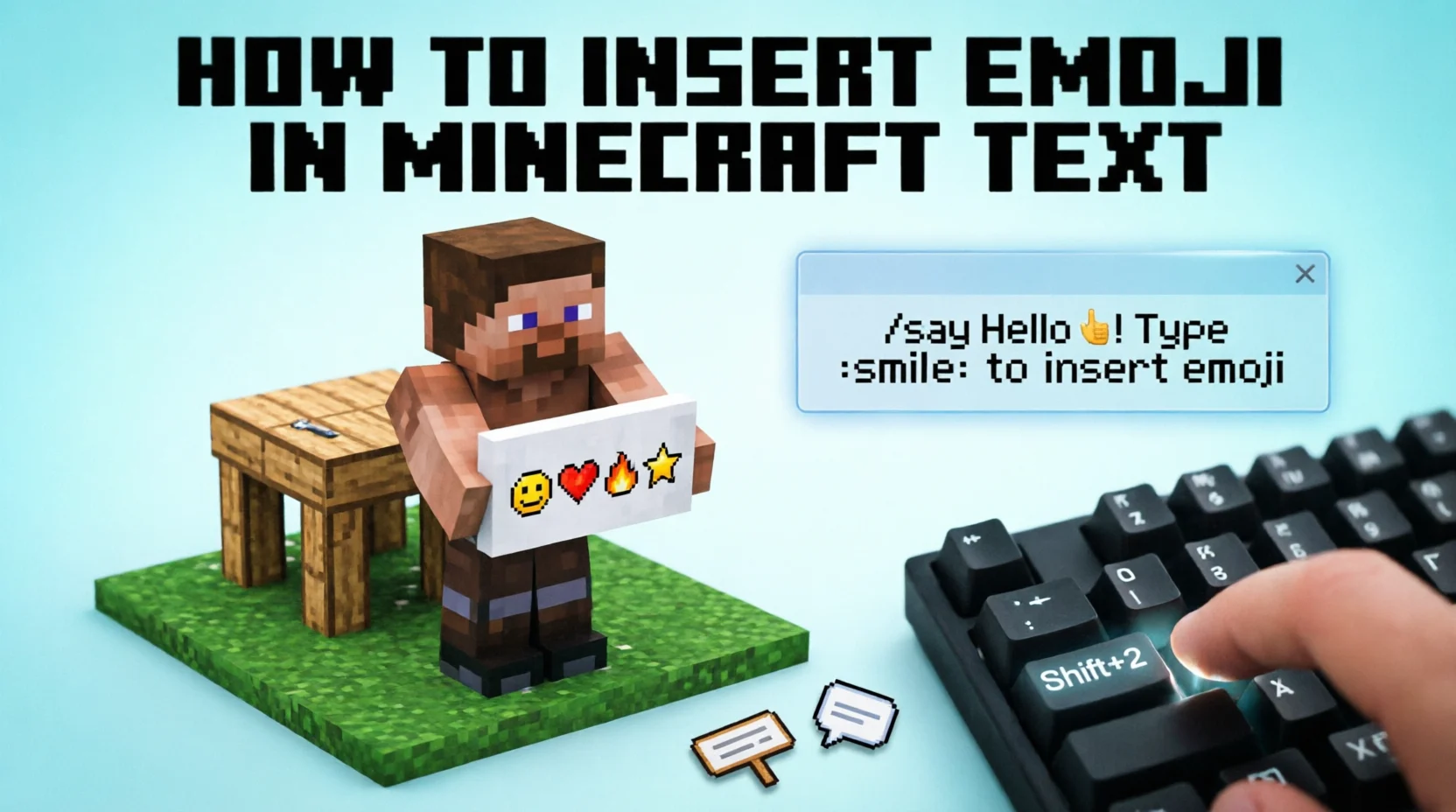
Minecraft players often want to add emojis to chat messages, signs, server announcements, books, and other text to make their communication more fun. The easiest way to insert an emoji into Minecraft is to copy an emoji from another source and paste it into the game, but whether it works depends on your device, Minecraft edition, and the text field you are using. Some emojis appear correctly, while others show as empty boxes, question marks, or missing symbols.
This guide explains how to insert emojis into Minecraft Java Edition and Bedrock Edition, how to use emojis on Windows and mobile devices, and what to do when an emoji does not display correctly.
Quick Answer: How Do You Insert Emoji Into Minecraft?
To insert an emoji into Minecraft, copy an emoji such as 😀, ❤️, ⭐, or 🔥 from a website or your device’s emoji keyboard. Open Minecraft, click or tap the text field where you want to use it, and paste the emoji.
On Windows, you can open the emoji panel by pressing Windows + . (period). On Android and iPhone, use the emoji keyboard. However, Minecraft may not support every emoji in every text field, so test your chosen symbol before using it in an important message.
Can You Use Emojis in Minecraft?
Yes, emojis can work in Minecraft, but support varies depending on the version, platform, font, and location where you enter the text.
Minecraft uses text fields for several purposes, including multiplayer chat, signs, books and quills, item names, and server messages. These areas may handle Unicode characters differently. An emoji that appears correctly in a chat message might not display properly on a sign or in a custom resource pack.
Here are the main factors that affect emoji support:
- Minecraft edition: Java Edition and Bedrock Edition may handle emoji characters differently.
- Device: Windows, macOS, Android, iOS, and consoles have different text input methods.
- Font support: The game needs a suitable font or glyph to display the character.
- Server settings: Some multiplayer servers restrict special characters or filter chat messages.
- Emoji complexity: Simple symbols may work more reliably than newer or combined emojis.
Before trying complicated emoji combinations, start with a basic symbol such as ★ or a simple smiley face.
How to Insert Emojis Into Minecraft Java Edition
Minecraft Java Edition runs on computers and offers several ways to enter text. The method you use depends on whether you are typing in chat, editing a sign, or working with another text field.
Method 1: Copy and Paste an Emoji
Copying and pasting is one of the easiest methods because it does not require a special Minecraft command.
- Open an emoji website or your computer’s emoji picker.
- Choose an emoji, such as 😀, ❤️, ⚡, or 🌟.
- Copy the emoji using Ctrl + C on Windows or Command + C on macOS.
- Launch Minecraft Java Edition.
- Open the chat window by pressing T in a standard game session.
- Paste the emoji using Ctrl + V or Command + V.
- Send the message and check whether the emoji displays correctly.
For example, you might try typing:
Hello everyone! 😀 Welcome to the server!
If the emoji appears as a square or question mark, the game may lack the required glyph, or the text field may not support that character.
Method 2: Use the Windows Emoji Keyboard
Windows includes a built-in emoji picker that lets you insert emojis into supported text fields.
Follow these steps:
- Open Minecraft on your Windows computer.
- Open the chat window or another editable text field.
- Press Windows + . (period).
- Browse the emoji categories or search for a symbol.
- Select the emoji you want to insert.
- Check the text field before sending or saving it.
You can try a message such as:
Good game! 🎮 GG everyone!
Keep in mind that opening the emoji picker does not guarantee Minecraft will accept every character. If the emoji does not appear, try copying it from another source or selecting a simpler symbol.
Method 3: Use Unicode Symbols
Unicode is a standard that assigns codes to characters used across different writing systems. Many familiar symbols, including stars, hearts, and arrows, are Unicode characters.
However, Minecraft does not automatically turn every Unicode code point into an emoji when you type its hexadecimal value. For example, typing U+1F600 into chat will generally display those characters as text rather than produce 😀.
The practical approach is to copy the actual character instead of typing its Unicode code point.
How to Insert Emojis Into Minecraft Bedrock Edition
Minecraft Bedrock Edition is available on Windows, Android, iOS, consoles, and other supported devices. Its text input process depends on your platform.
On Windows
- Open Minecraft Bedrock Edition.
- Enter a world or server where you can send messages.
- Open the chat interface.
- Press Windows + . to open the emoji picker.
- Select an emoji and check whether it appears in the text field.
- Send the message if the character displays correctly.
If the emoji picker does not work in a particular field, copy the emoji from a browser and paste it instead.
On Android
Android players can often use their phone’s built-in keyboard to insert emojis.
- Open Minecraft and enter a world.
- Open chat or another editable text field.
- Tap the text input area to display your keyboard.
- Tap the emoji button, usually shown as a smiley face.
- Choose an emoji and enter your message.
- Send the message or save the text.
For example:
Let’s explore! 🗺️⛏️
Your keyboard and Minecraft version may affect which characters are available and how they appear.
On iPhone and iPad
iOS provides a built-in emoji keyboard that can be enabled through the device’s keyboard settings.
- Open Minecraft.
- Select a text field, such as chat.
- Switch to the emoji keyboard using the smiley face or globe button.
- Select your preferred emoji.
- Check the result and send or save the text.
If the emoji keyboard is unavailable, check that the Emoji keyboard is enabled under Settings > General > Keyboard > Keyboards.
On Xbox, PlayStation, and Nintendo Switch
Console players may have fewer convenient options for inserting emojis directly. The available input methods depend on the console, game version, and text field.
Try the following:
- Check whether the on-screen keyboard provides symbols or emoji input.
- Use supported text input features available on your console.
- Check whether a connected keyboard can enter or paste the character.
- If your particular setup does not support emojis, use ordinary text or supported symbols instead.
Do not assume that a method working on Windows or mobile will also work on a console.
How to Put Emojis on Minecraft Signs
Signs are useful for labeling buildings, creating instructions, and decorating worlds. However, sign text can behave differently from chat messages.
To test an emoji on a sign:
- Place a sign in your Minecraft world.
- Open the sign’s editing interface.
- Copy an emoji from a source that supports Unicode.
- Paste it into the sign text field if your platform permits pasting.
- Save the sign and inspect the result.
Try a simple design such as:
★ HOME ★
Or use a message like:
Welcome! ♥
Basic symbols may be easier to display than detailed, multicolored emojis. If the emoji disappears or becomes a square, try a different character.
Some platforms do not offer a convenient way to paste text into sign editors. In those cases, the sign editor’s available keyboard input determines what you can enter.
How to Use Emojis in Minecraft Books and Item Names
Minecraft books and quills allow players to create written content, while an anvil lets them rename eligible items. Emoji support depends on the specific interface and available fonts.
Books and Quills
To try an emoji in a book:
- Open a book and quill.
- Select the page you want to edit.
- Insert or paste an emoji if your platform supports it.
- Preview the page and check the saved result.
For example, a book title or note might begin with:
★ Adventure Journal
Remember that not every symbol will display correctly in every version.
Renaming Items
You can also test emojis in item names using an anvil.
- Open an anvil.
- Place a renamable item in the input slot.
- Click the name field.
- Try entering a supported symbol or emoji.
- Take the item and inspect its displayed name.
An emoji may be accepted by the text field but still render incorrectly in the item tooltip. Some servers also limit special characters in item names.
Best Emojis to Try in Minecraft
The following characters are useful starting points. Their appearance and compatibility can vary by platform and Minecraft version.
| Emoji or symbol | Example use | Suggested text |
| 😀 | Friendly chat | Hello 😀 |
| ❤️ | Friendship or appreciation | Thanks ❤️ |
| ⭐ | Decorations or rankings | ⭐ Best Builder |
| 🔥 | Excitement | That was amazing 🔥 |
| ⚔️ | Combat-related messages | Ready for battle ⚔️ |
| ⛏️ | Mining | Time to mine ⛏️ |
| 🎮 | Gaming messages | Let’s play 🎮 |
| ☀ | Weather or decoration | Sunny day ☀ |
| ★ | Signs and labels | ★ Main Base ★ |
| ✓ | Checklists | Task complete ✓ |
These are examples to test, not a guarantee that every character works in every Minecraft text field. Some emoji sequences contain multiple Unicode characters, including variation selectors or zero-width joiners, which can make them less compatible than simple symbols.
Why Are Emojis Not Showing in Minecraft?
If an emoji does not appear correctly, the problem usually relates to text input, character support, fonts, or server restrictions.
1. The Emoji Appears as a Square
A square or empty box often means the font cannot display the character. Minecraft may not have a suitable glyph for that emoji in the current interface.
What to do: Try a simpler symbol, test another text field, or investigate whether a compatible resource pack is available for your edition.
2. The Emoji Turns Into a Question Mark
A question mark can indicate that the character was not preserved or could not be represented correctly somewhere in the input process.
What to do: Copy the actual emoji again, try another input method, and check whether the problem occurs in other applications.
3. The Emoji Does Not Paste
Some text fields or platforms restrict pasting, and certain game interfaces may not handle the clipboard the same way as a normal text editor.
What to do: Try the device’s built-in keyboard or test a different supported text field.
4. The Emoji Works in Chat but Not on Signs
Different Minecraft interfaces may use different rendering methods or character restrictions.
What to do: Test the character in the exact location where you want to use it. Do not rely on chat alone to confirm sign compatibility.
5. The Server Removes the Emoji
Multiplayer servers may filter chat messages, item names, or other user-generated text.
What to do: Check the server’s rules or ask an administrator whether special characters are allowed. Avoid attempting to bypass server restrictions.
Can You Use Resource Packs or Mods for More Emojis?
Yes, some Java Edition resource packs and mods can change fonts or add support for additional symbols. However, they are not a universal solution.
A resource pack may provide additional font glyphs, but it cannot guarantee that every text field will accept every emoji. Complex colored emojis may also be difficult to reproduce consistently inside Minecraft’s text renderer.
Mods may offer extra customization, but compatibility depends on the Minecraft version, mod loader, and other installed modifications. You should verify that the pack or mod supports your exact version before installing it.
For Bedrock Edition, available customization options differ from Java Edition. Only use compatible packs from trustworthy sources, and be cautious with downloads that request unnecessary permissions or credentials.
Common Mistakes to Avoid
When adding emojis to Minecraft, avoid these common problems:
- Typing a Unicode code point instead of the character: Entering U+1F600 does not usually create the 😀 emoji.
- Assuming every emoji works everywhere: Chat, signs, books, and item names can behave differently.
- Using complicated emoji combinations first: Start with simple symbols before testing flags, skin-tone modifiers, or joined emoji sequences.
- Confusing input with display support: A text field may accept an emoji even if the game cannot render it correctly.
- Installing unverified modifications: Unknown downloads may be unsafe or incompatible with your game version.
- Ignoring server rules: Special-character restrictions may be intentional.
Practical Tips for Better Results
For the most reliable experience, use a simple testing process.
First, choose a basic character such as ★, ♥, or 😀. Enter it into the exact text field you want to customize. Save or send the text, then check how it appears in the game.
If the character fails, try another symbol and another input method. Compare the result in chat, a sign, or a book if those features are relevant to your project.
For multiplayer servers, ask whether the server supports special characters. For customized Java Edition installations, check whether a compatible font resource pack or mod is available.
Finally, remember that an emoji’s appearance may differ between your computer and another player’s device. A symbol that looks colorful on your screen may appear monochrome or display differently for someone else.
FAQs:
1. How do I insert emojis into Minecraft chat?
Copy an emoji from a website or use your device’s emoji keyboard. Open Minecraft chat, paste or select the character, and send the message if it displays correctly.
2. What is the shortcut for emojis on Windows?
Press Windows + . (period) to open the Windows emoji picker. Select an emoji and insert it into a compatible Minecraft text field.
3. Can I use emojis in Minecraft Java Edition?
Yes, some emojis and Unicode symbols can work in Java Edition. However, compatibility depends on the font, Minecraft version, text field, and server settings.
4. Can I put emojis on Minecraft signs?
Sometimes. Sign editors and font rendering may limit the characters you can use. Test the emoji on a sign before using it in a larger design.
5. Why do emojis appear as squares in Minecraft?
A square often indicates that the game’s current font cannot display the character. Try a simpler symbol or investigate a compatible resource pack for your version.
6. Can I insert emojis into Minecraft Bedrock Edition on mobile?
You can try using the built-in emoji keyboard on Android or iOS. Whether the emoji displays correctly depends on the game version, interface, and character support.
7. Do Minecraft commands turn emoji codes into emojis?
Not generally. Typing a Unicode code point such as U+1F600 does not automatically produce 😀. Commands that support text components may accept literal Unicode characters, but rendering and command syntax still matter.
8. Do I need a mod to use emojis in Minecraft?
No. Copying and pasting or using your device’s emoji keyboard may be enough for supported characters. A compatible resource pack or mod may help with additional glyphs, but neither guarantees universal emoji support.
Conclusion
Inserting emojis into Minecraft can make chat messages, signs, books, and item names more expressive. The easiest method is usually to copy an emoji or use your device’s emoji keyboard, then test it in the exact text field where you want to display it. Windows users can start with the Windows + . shortcut, while mobile players can use their built-in emoji keyboards.
If an emoji appears as a square, disappears, or turns into a question mark, try a simpler symbol and check your Minecraft edition, platform, and server restrictions. With a little testing, you can find characters that work for your setup without unnecessary commands or modifications.







1 thought on “Minecraft: How to Insert Emoji Into Text (2026 Guide)”